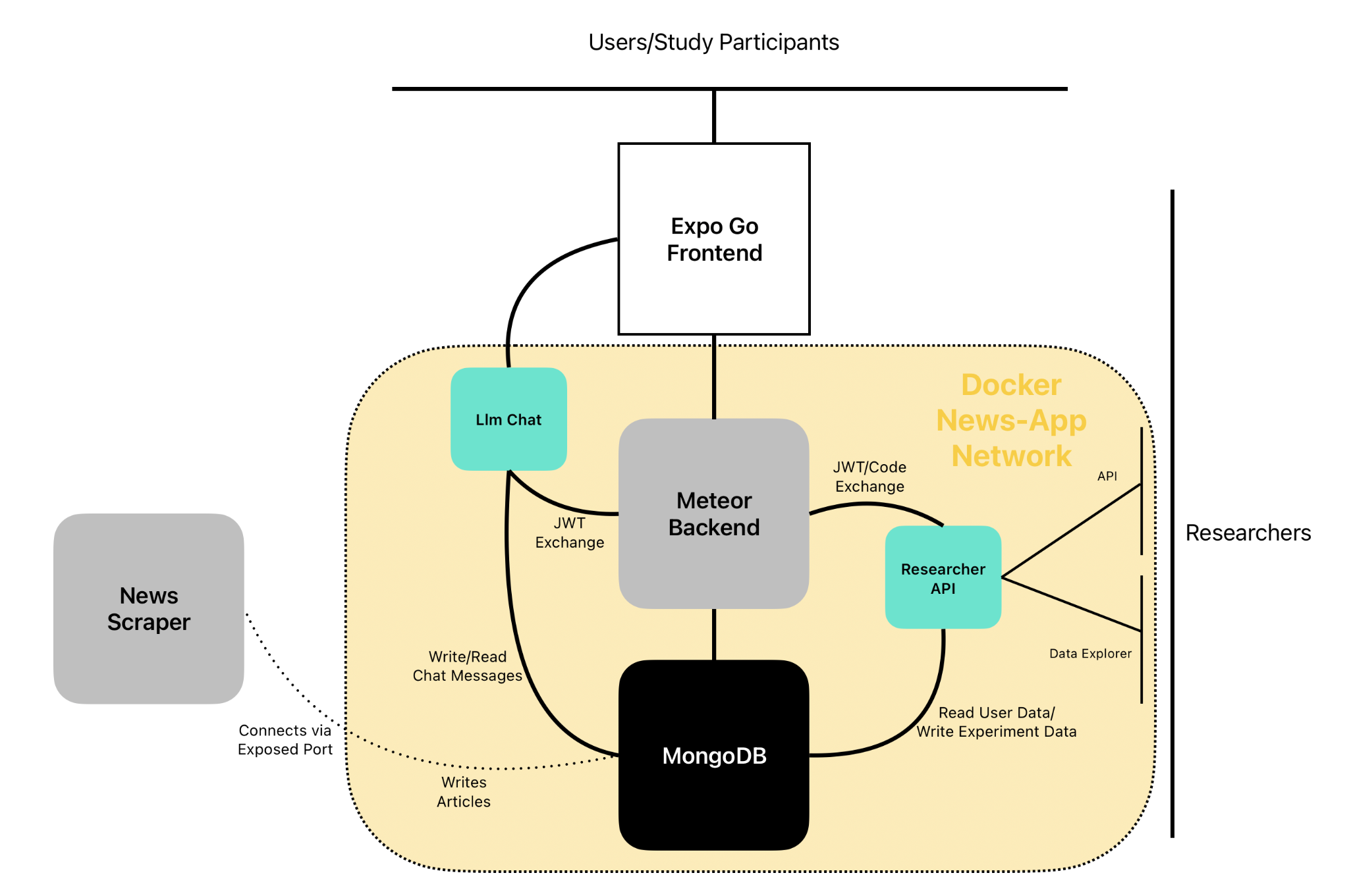
Docker Deployment
This is the installation guide for Informfully, which utilizes Docker containers for both the front-end and back-end. The following instructions outline the process of setting up Docker containers for Informfully on Windows 10 Home. A prerequisite for Windows 10 Home users is to enable the WSL 2.0 feature. WSL is the Windows Subsystem for Linux, and the instructions for enabling it can be found in the online documentation. These instructions should also work for Linux and macOS.
To start from scratch, please download and install Docker. Check if Docker has been set up by opening the command prompt/terminal (CMD on Windows) and type docker -v to check your Docker version. For this guide, Docker version 20.10.8 has been used. Next is a step-by-step guide for building and loading a Docker image for both the front end as well as the back end.
Setting Up the Front End
This is the file that Docker uses to build the Docker image. It provides instructions to Docker on how to build the image and what to include in it. To create a Dockerfile, open a text editor, such as Notepad on Windows, and type the following contents:
FROM node:16.13.0-alpine
# IP address of localhost
ENV REACT_NATIVE_PACKAGER_HOSTNAME=192.168.0.12
ENV EXPO_DEVTOOLS_LISTEN_ADDRESS=0.0.0.0
EXPOSE 19000
EXPOSE 19001
EXPOSE 19002
WORKDIR '/app'
COPY package.json .
COPY app.json .
RUN npm install --global expo-cli
RUN npm install --legacy-peer-deps
COPY . .
CMD ["expo", "start"]Code Explanation
FROM node:16.13.0-alpineimports a light-weight Linux distribution called Alpine with the Node.js v16.13.0 environment. This sets a base OS for the image on which the following processes and commands will operate on. We chose Node.js v16.13.0 as this was the local version of Node.js that we used to develop located here.REACT_NATIVE_PACKAGER_HOSTNAMEneeds to be set equal to the IP address of the host machine, to which the iOS or Android phone will connectEXPO_DEVTOOLS_LISTEN_ADDRESSshould be left as it is; it is an environment variable required for running the Expo server on the Docker container and connecting to it over the host machineEXPOSE 19000 19001 19002are the ports used by Expo, which we have to expose to access the Docker container from the host machineWORKDIR '/app'sets the directory where the contents of the image will be located inside the Linux OSCOPY package.jsonandCOPY app.json. Copy the package.json and app.json files from the current local directory into the working directory on the Linux OS made aboveRUN npm install --global expo-clitells Docker to execute the command line argumentnpm install --global expo-cli, which installs the Expo command line tool into the Docker imageRUN npm install --legacy-peer-depsexecutes the command npm install with the option of ignoring legacy peer dependencies. This option must be enabled if using Node version 7.0 or higher, as the package.json dependencies were created with Node version 6.XX. This command will install all the required dependencies into the Docker imageCOPY . .copies the contents from the frontend directory into the Docker imageCMD ["expo","start"]then executes the command line argument expo start to start the Expo server, after which a QR code is shown on the command prompt, and users can access the Informfully application with the Expo Go client on their iOS or Android phones
Build Docker Image To run the following commands, open Docker Desktop to start the Docker service (or use systemctl, etc. for Linux). Navigate to the frontend folder on the command line and type the command docker build . -t informfullyfrontend which will locate the Dockerfile in the current directory and execute all commands defined in that file.
Run Docker Container Once the Docker image is built, a Docker container of it can be run by typing the command docker run -p 19000:19000 -p 19001:19001 -p 19002:19002 informfullyfrontend. This will start a Docker container (and the Expo service will get started on it). The -p 19000:19000 is used to open port 19000 from the container to be accessible on the host computer at localhost:19000. To access the Informfully application on an iOS or Android phone, scan the QR code shown in the command line.
Save Docker Image To save the created Docker image, type in the command prompt docker save -o informfullyfrontend.tar informfullyfrontend.
Load Docker Image Transfer the Docker image to your server or the location where it needs to be opened, and ensure Docker is installed. To open the image, start the Docker service and type the following command from the directory where the Docker image is located: docker load -i <path to image tar file>. Please note that loading the file may take a few minutes, and no progress bar will be displayed on the command line.
INFO
Front End Troubleshooting
Access is denied' error while building Docker image: This might be caused either by a missing permission or by the project path being too long. To resolve this issue, temporarily move your entire frontend folder directly under the C:\ directory. This solution has been effective in resolving the issue and successfully generating the backend Docker image.
Cannot successfully connect phone to Expo service: If a QR code has been generated but you are facing problems connecting to the running Meteor service on the container, make sure that:
- all antivirus programs on the host machine have been disabled,
- the firewall on the host machine has been disabled,
- the phone and the host machine share the same wireless network, and
- the wireless network is public.
Setting Up the Back End
Please note that before building the Docker image, the bundle folder located here) has to be generated and unpacked at the root of the backend directory. This can be done by following the first part of meteor build instructions for the back end located here) and unpacking the generated tar file in the root of the backend folder. To create the Dockerfile, open a text editor such as Notepad on Windows, and type in the following contents:
# Configuration from phusion passenger docker, "https://github.com/phusion/passenger-docker"
# Version 2.0.0 still uses Node version 14, which is incompatible with the local Meteor Node version 12.
# If you want to generate the Docker image with the latest Node version, you need to make sure that the
# local Meteor Node version is compatible with it (or even better, it is the same)
FROM phusion/passenger-nodejs:2.0.0
# FROM phusion/passenger-nodejs
ENV HOME /root
CMD ["/sbin/my_init"]
# Install necessary tools
RUN apt-get update \
&& apt-get install -y wget \
&& apt-get install -y sudo
# Install MongoDB
RUN wget -qO - https://www.mongodb.org/static/pgp/server-4.4.asc | apt-key add - \
&& echo "deb [ arch=amd64,arm64 ] https://repo.mongodb.org/apt/ubuntu focal/mongodb-org/4.4 multiverse" | tee
/etc/apt/sources.list.d/mongodb-org-4.4.list \
&& apt-get update
RUN apt-get install -y mongodb \
&& sudo apt-get update
# Our own configuration
WORKDIR '/home/app/'
COPY package.json .
COPY Passengerfile.json .
COPY . .
# Install all dependencies of the bundle, similar to manual deployment (it uses the Node/NPM version of the Docker image)
WORKDIR '/home/app/bundle/programs/server'
RUN npm install --only=prod
WORKDIR '/home/app/'
# Make a database directory for MongoDB in the Docker image and change the owner permissions for the directory to allow access
RUN sudo mkdir -p /data/db
RUN sudo chown `id -u` /data/db/
CMD ["mongod"]- The first set of instructions takes the base image of Phusion Passenger from the Docker repository. This image is configured with Node.js (more information here).
- The next set of instructions is required to install the basic commands in order to download and configure the rest of the required software. Afterwards, MongoDB is installed.
- The next set of instructions creates a folder called app, and it copies the backend folder contents onto the image.
- All dependencies of the bundle folder are installed, using the npm version of the base Docker image of Phusion Passenger.
- A directory is created called
/data/dbfrom which MongoDB retrieves its database. The ownership permissions of the directory are set so MongoDB can access it. - Finally, the command
mongodstarts the MongoDB service.
Build Docker Image
To run the following commands, open Docker Desktop to start the Docker service (or use systemctl, etc. for Linux). Navigate to the back end folder on the command line and type the command docker build . -t informfullybackend which will locate the Dockerfile in the current directory and execute all commands defined in that file.
Run Docker Container
Once the Docker image is built, a Docker container of it can be run by typing the command docker run -p 8020:8080 informfullybackend. This will start a Docker container (and the MongoDB service will get started on it). The -p 8020:8080 is used to open port 8080 from the container to be accessible on the host computer at localhost:8020. Follow the next steps to get the Backend running:
- Type
docker psto see which containers are running. - Copy the container ID of the container that is running the back end.
- Type
docker exec -it [containerID] sh, this will open the container and you will be able to execute commands on it. - Run the command
passenger startinside the opened Docker container. This will start the Phusion Passenger service; the back end will now be running.
In order to open the back end server, running on the container, from the host computer, open an internet browser and type localhost:8020 (which is the host port that was defined above). The passenger's port 8080 of the container can be changed by editing the Passengerfile.json file located here) in the backend directory. Additionally, any other unused port can be used for the localhost (the left-hand side of -p 8020:8080), instead of 8020.
Save Docker Image To save the created Docker image, type in the command prompt docker save -o informfullybackend.tar informfullybackend.
Load Docker Image Transfer the Docker image to your server or the location where it needs to be opened, and ensure Docker is installed. To open the image, start the Docker service and type the following command from the directory where the Docker image is located: docker load -i <path to image tar file>. Please note that loading the file may take a few minutes, and no progress bar will be displayed on the command line.
INFO
Back End Troubleshooting
Access is denied' error while building Docker image See entry above in the front end section.
Node fibers issues Once the Docker container is running and you try to start the Phusion Passenger server, there may be an error message regarding node fibers. This is most likely caused by the fact that the Node.js version of Meteor, with which the bundle folder was generated, differs from the one used by the Phusion Passenger server in the Docker image.
To solve this problem, you would have to upgrade the Meteor version of the project (by running meteor upgrade) or use an older version of Phusion Passenger's base Docker image. In our case, we used an older version of Phusion Passenger's base Docker image, which supports Node v14.